G-SYNC Pulsar Monitor Firmware Update
Update your G-SYNC monitor firmware to the newest version to enable the latest features. You can also roll back to earlier firmware versions.
Need help? Start here.
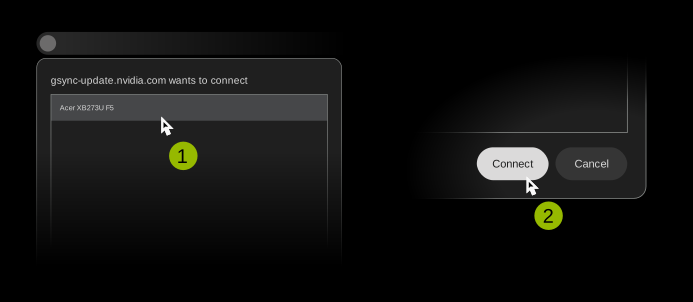
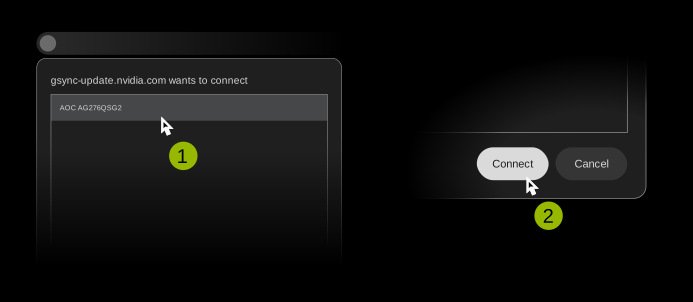
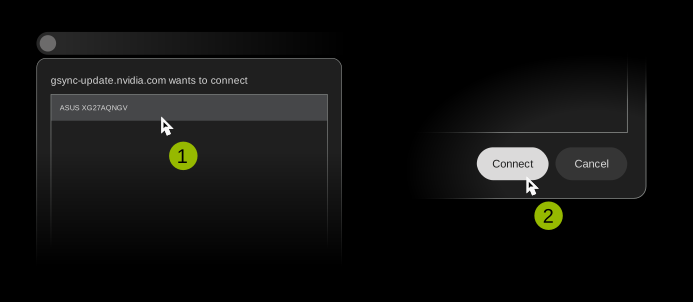
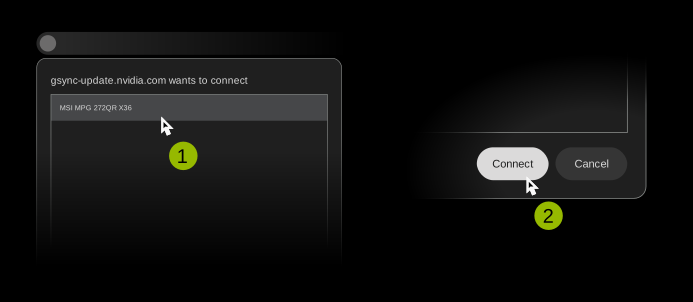
Firmware updates are available for Acer Predator XB273U F5, AOC AGON PRO AG276QSG2, ASUS ROG STRIX Pulsar XG27AQNGV and MSI MPG 272QR X36 monitors with G-SYNC Pulsar.
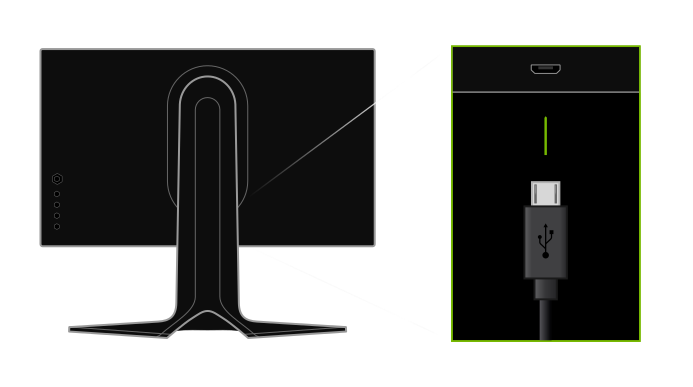
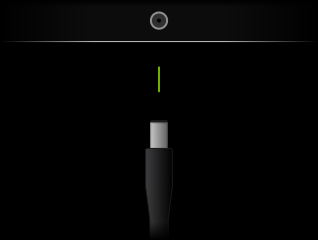
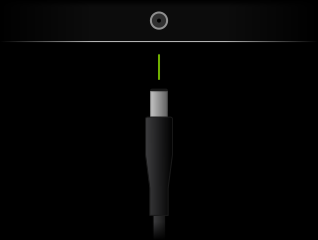
You need an NVIDIA G-SYNC Pulsar monitor, a supported computing device (such as a PC, Mac or Android tablet or phone), a Micro-B USB cable from the monitor to your computing device and a supported web browser (such as Google Chrome).
You don't need to install an app. Just connect your monitor via USB to a supported device and open this page in a supported browser.
These browsers are currently supported:
- Google Chrome 61 or newer
- Microsoft Edge 79 or newer
- Opera 48 or newer
The following operating systems are supported:
- Microsoft Windows
- Apple macOS
- Linux
- Google Android
- Google ChromeOS
Note: Apple iOS is not supported
Updates typically take 5 to 10 minutes to install.
The app uses browser security features and only requests access to supported monitor USB devices. Like any firmware update, it must not be interrupted.
Using this official tool does not by itself change your monitor warranty. Warranty coverage is provided by the monitor manufacturer or seller, so check their warranty terms for details.
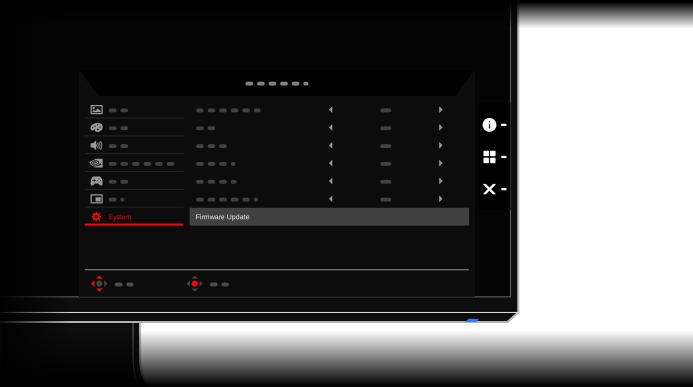
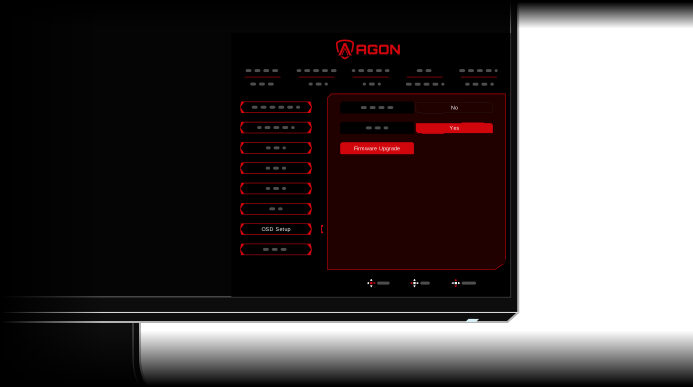
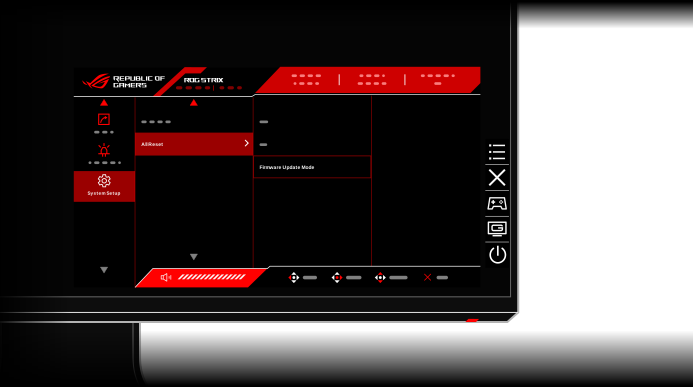
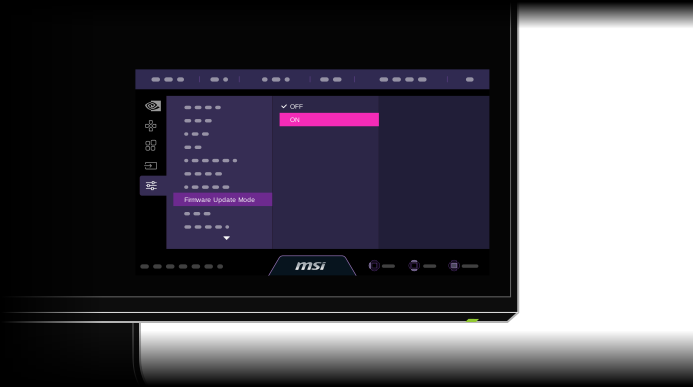
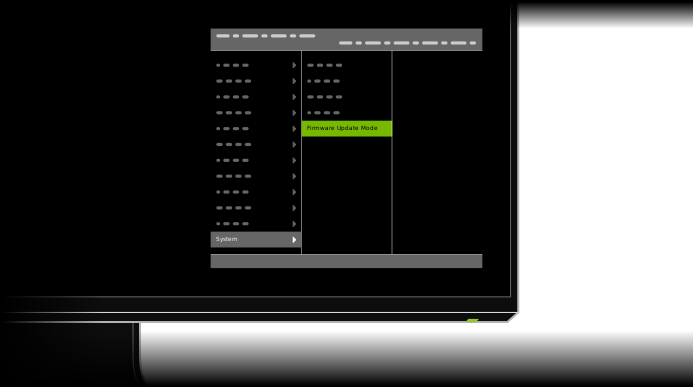
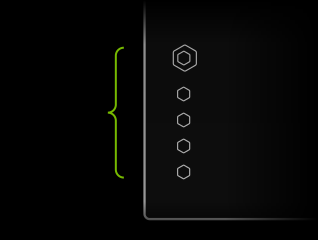
Be sure to carefully follow the connection instructions so that your monitor is switched into Firmware Update Mode. When the monitor is in this mode, the status light will flash slowly, and the screen will show Firmware Update Mode in the top-left corner.
If the app still doesn't connect to the monitor, there may be a problem with the USB cable. Ensure your cable supports data transfer, try reconnecting it or try a different cable.
The app will alert you. In most cases, it will allow you to retry safely.
In the unlikely case that your monitor won’t start, click "Update Monitor" and follow the recovery steps in the "My monitor won't start up" section.
In rare cases, after a failed upgrade, the monitor may fail to start up. To reinstall the latest firmware, click "Update Monitor" and follow the recovery steps in the "My monitor won't start up" section.
Visit our support page.